Introduction
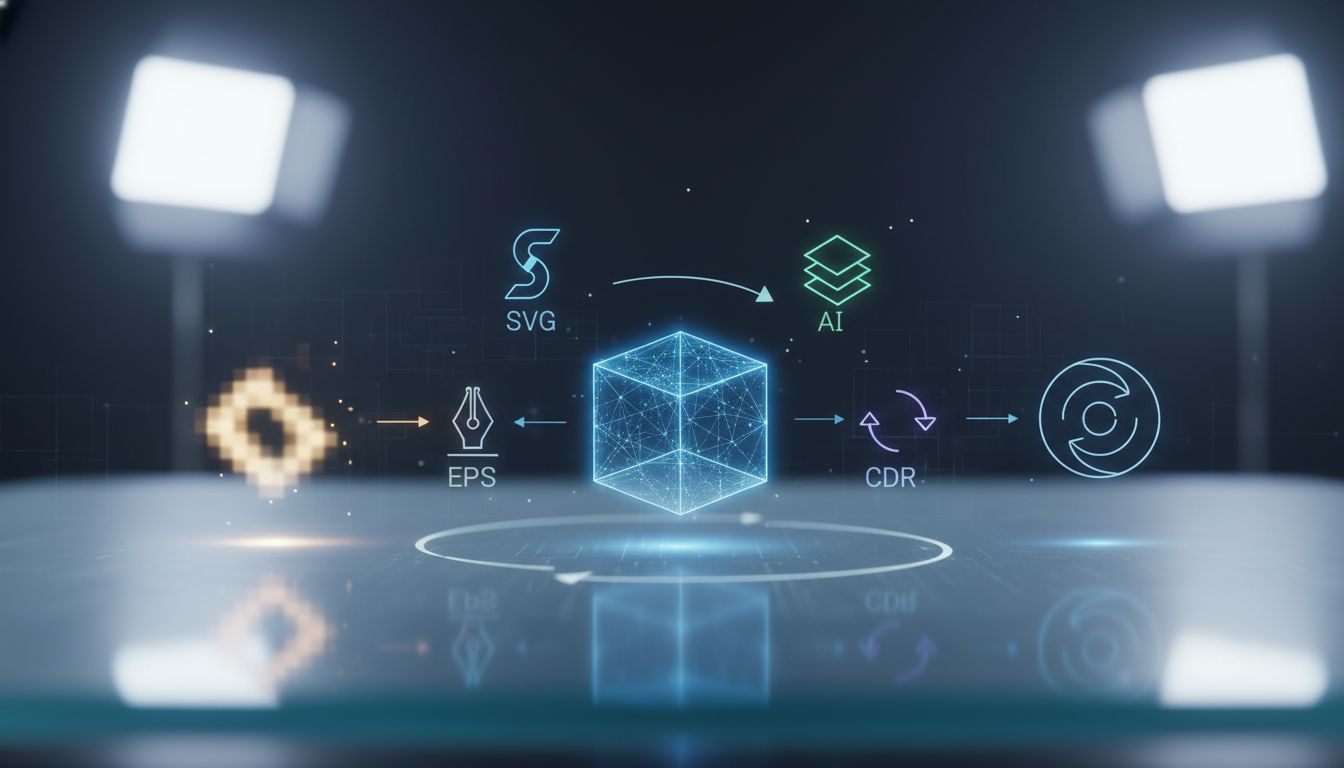
In today’s hyper-competitive digital landscape, your logo is the foundational cornerstone of your brand identity. It appears everywhere: on tiny smartphone screens, massive highway billboards, embroidered corporate apparel, and high-resolution printed brochures. However, a common crisis many businesses face is realizing that their primary logo file is trapped in a low-resolution, pixelated format. If your logo becomes blurry the moment you try to enlarge it, you are dealing with a raster image. To achieve infinite scalability and professional quality, you must understand How To Convert Your Logo Into Vector Formats (Svg, Ai, Eps, Cdr).
Industry trends in multi-platform branding demand absolute visual perfection. A pixelated logo instantly diminishes brand trust, making your business appear unprofessional. Vector graphics solve this problem entirely. Unlike standard images made of colored squares (pixels), vector files are built using mathematical formulas, allowing them to be scaled to the size of a skyscraper without losing a single ounce of clarity. This comprehensive, deep-dive guide will explore the precise mechanics of vector graphics, the distinct advantages of various vector file types, and the exact step-by-step methodologies required to flawlessly vectorize your brand assets.
Key Takeaways
- Infinite Scalability: Vector files can be resized indefinitely without any loss of quality or crispness, making them essential for both web and print.
- Format Specifics: Understanding the difference between SVG (web optimization), AI (Adobe’s native design file), EPS (the universal print standard), and CDR (CorelDRAW’s specialty format) is crucial for proper asset management.
- Manual vs. Automated Conversion: While automated tracing tools offer a quick fix, manual vectorization using the Pen tool remains the gold standard for perfect curves and sharp corners.
- Professional Assurance: Relying on expert designers ensures your color profiles (CMYK vs. RGB) and typography are perfectly preserved during the conversion process.
- Future-Proofing: Having your logo in all major vector formats guarantees that no matter what a printer, web developer, or sign-maker requests, you will have the correct file ready to deploy.
Understanding the Basics: Raster vs. Vector Graphics
Before diving into the conversion process, it is imperative to deeply understand the fundamental differences between raster and vector graphics. This technical distinction dictates why vectorization is a mandatory step for any serious business.
The Limitations of Raster Images
Raster images, which include familiar formats like JPEG, PNG, GIF, and BMP, are constructed using a finite grid of tiny colored squares known as pixels. When you capture a photograph with a digital camera or save a basic image from the web, you are generating a raster file. The primary limitation of a raster image is its resolution dependency. If a raster logo is 300 pixels wide, it only possesses enough data to look sharp at that specific size. When you attempt to stretch or enlarge that image to fit a banner, the computer must artificially guess what colors to fill into the newly created space. This interpolation results in the dreaded “pixelation”—a blurry, blocky, and distorted appearance that ruins the integrity of your logo.
The Power of Vector Graphics
Vector graphics, conversely, completely bypass the concept of pixels. Instead of a grid, vector files utilize 2D points connected by lines and curves to create geometric shapes. These shapes are dictated by mathematical equations (specifically Bezier curves). Because the image is essentially a series of mathematical coordinates, resizing the logo simply changes the variables in the equation. The computer recalculates the math perfectly, rendering a razor-sharp image whether the logo is printed on a business card or a massive blimp. This is why learning How To Convert Your Logo Into Vector Formats (Svg, Ai, Eps, Cdr) is a critical task for protecting your brand’s visual equity.
Deep Dive into Vector Formats: SVG, AI, EPS, and CDR
Not all vector formats are created equal. Each extension serves a highly specific purpose within the realms of web development, graphic design, and commercial printing. To manage your brand effectively, you must understand the utility of each file type.
Scalable Vector Graphics (SVG)
SVG is an XML-based vector image format strictly designed for two-dimensional graphics with support for interactivity and animation. Developed by the World Wide Web Consortium (W3C), SVG is the undisputed king of web graphics. Because SVG files are written in code, they have incredibly small file sizes, which significantly boosts website loading speeds—a critical factor for Technical SEO. Furthermore, web developers can manipulate SVG logos using CSS and JavaScript, allowing for dynamic hover effects, color changes in dark mode, and intricate loading animations. If your logo is going on a website or an application, an SVG file is mandatory.
Adobe Illustrator (AI)
The AI format is the proprietary native file type for Adobe Illustrator, the global industry-standard software for vector graphic design. An AI file is essentially the “master blueprint” of your logo. It retains all original layers, un-outlined typography, transparency settings, and editable strokes. When you ask a designer to modify your logo—perhaps changing a brand color or updating the text—they will almost always request the AI file. It is not generally used for final delivery to a web browser or a standard office printer, but it is the ultimate source file that every business owner must possess in their archives.
Encapsulated PostScript (EPS)
EPS is the universal, legacy standard for vector graphics in the print industry. Based on the PostScript programming language, EPS files can be opened by virtually any vector graphic software, not just Adobe products. If you are sending your logo to a third-party vendor—such as a promotional products company printing your logo on mugs, a sign manufacturer cutting vinyl decals, or a magazine publisher—they will almost certainly request an EPS file. EPS files flawlessly support CMYK color profiles, ensuring that the colors you see on screen match the ink printed on the physical product.
CorelDRAW (CDR)
CDR is the proprietary file format developed by Corel Corporation for its CorelDRAW software. While Adobe Illustrator dominates the general graphic design market, CorelDRAW maintains a massive, fiercely loyal user base in specific industrial sectors. The apparel printing industry, laser engraving services, CNC routing, and traditional sign-making industries frequently rely on CorelDRAW. Having a CDR version of your logo ensures seamless compatibility if your manufacturing partners utilize this specific ecosystem.
How To Convert Your Logo Into Vector Formats (Svg, Ai, Eps, Cdr)
Now that the fundamental importance of vector graphics is established, we can explore the actionable methodologies for conversion. There are several routes you can take, ranging from automated software to professional manual redrawing. Your choice will depend on the complexity of your original logo, your budget, and your technical proficiency.
Method 1: Manual Tracing Using Adobe Illustrator (The Professional Standard)
Manual tracing is the most accurate and professional method for vectorizing a logo. It involves importing the raster image into vector software and literally drawing over it using vector tools. This guarantees perfect symmetry, clean curves, and an optimized file with the absolute minimum number of anchor points.
- Step 1: Import and Lock. Open Adobe Illustrator, create a new artboard, and place your raster logo onto the canvas. Lower the opacity of the image to 50%, and lock the layer. This creates a faded template that will not move while you work.
- Step 2: The Pen Tool. Create a new layer above the locked image. Select the Pen Tool (Shortcut: P). This is the most powerful tool in vector design. Begin clicking to create anchor points along the edges of your logo. Click and drag to create smooth, flowing Bezier curves.
- Step 3: Geometry and Shapes. Do not manually trace perfect circles or squares with the Pen tool. Instead, use the Ellipse and Rectangle tools to recreate geometric elements of your logo perfectly. This ensures absolute mathematical perfection.
- Step 4: Typography Replacement. If your logo contains text, do not trace the letters manually. Identify the exact font used, type the text anew using the Type tool, and perfectly align it over the old text. Once aligned, select the text and choose “Create Outlines” (Ctrl+Shift+O). This converts the live text into pure vector shapes, ensuring the font never defaults to a standard system font when opened on another computer.
- Step 5: Color Application. Use the Eyedropper tool to sample the original colors, or better yet, input your brand’s exact HEX, RGB, or CMYK color codes to ensure absolute brand consistency.
- Step 6: Exporting. Finally, go to File > Save As. Here you can generate your AI, EPS, and SVG files. For CDR, you would typically need to open the EPS in CorelDRAW and save it natively.
Method 2: Automated Image Trace Tools
If manual tracing sounds too complex, Adobe Illustrator offers an automated feature called “Image Trace.” This tool uses artificial intelligence to scan the pixels and automatically generate vector paths. While incredibly fast, it has distinct limitations and is generally only suitable for high-contrast, high-resolution source files.
- Step 1: Select the raster image on your Illustrator artboard.
- Step 2: Open the Window > Image Trace panel.
- Step 3: Choose a preset. For a standard logo, “Black and White Logo” or “3 Colors” often works best.
- Step 4: Adjust the Advanced Settings. Tweak the “Paths” (higher for tighter adherence to the original), “Corners” (adjusts the sharpness of angles), and “Noise” (reduces stray, unwanted vector shapes).
- Step 5: Click “Expand.” This finalizes the trace, turning the preview into actual, selectable vector paths.
Warning: Automated tracing often creates hundreds of unnecessary anchor points, resulting in a messy, bloated file. It also struggles to create perfect circles or sharp 90-degree angles, often resulting in slightly wobbly lines. It is rarely recommended for professional brand assets without heavy manual cleanup afterward.
Method 3: Using Free Online Converters
For individuals without access to premium software like Adobe Illustrator, the internet offers a plethora of free online conversion tools (such as Vector Magic, Convertio, or Adobe Express). These platforms allow you to upload a PNG or JPEG and download an SVG or EPS.
While this method answers the basic question of How To Convert Your Logo Into Vector Formats (Svg, Ai, Eps, Cdr) quickly and for free, it comes with severe caveats. Online converters rely entirely on automated algorithms. If your original image is low-resolution, blurry, or contains complex gradients, the resulting vector will look distorted, blobby, and highly unprofessional. Online converters should only be used as a last resort or for internal, non-commercial mockups.
Method 4: Hiring a Professional Design Agency
Because your logo is the face of your company, taking risks with automated tools or amateur tracing can severely damage your brand’s perception. The most reliable, stress-free method to obtain flawless vector files is to hire professional graphic designers who specialize in logo vectorization.
Expert agencies do not rely on automated tracing. They manually redraw your logo from scratch, ensuring that every curve is mathematically perfect, every font is matched or precisely recreated, and every color is perfectly calibrated for both digital (RGB) and print (CMYK/Pantone) ecosystems. If you want guaranteed perfection, we highly recommend consulting with experts. For instance, London Logo Designs provides exceptional, high-quality logo vectorization and branding services, ensuring your primary assets are flawlessly prepared for any medium.
Crucial Considerations During Vector Conversion
Converting a logo is not simply about changing a file extension. To ensure your new vector files are truly functional and professional, you must pay attention to several highly technical details.
Color Profiles: RGB vs. CMYK vs. Pantone
When vectorizing a logo, you must manage your color spaces correctly. Computer screens display colors using light in the RGB (Red, Green, Blue) color space. Printing presses create colors using ink in the CMYK (Cyan, Magenta, Yellow, Key/Black) color space. Because the gamut (range) of RGB is larger than CMYK, highly vibrant digital colors (like neon green or electric blue) cannot be printed accurately. When creating your vector AI and EPS files, a professional will ensure your colors are properly converted to CMYK so that your printed brochures do not look dull or muddy. Furthermore, they can assign specific Pantone Matching System (PMS) colors to your vector paths, guaranteeing absolute color consistency across global print vendors.
Gradient Complexities
While modern vector formats handle gradients much better than legacy formats, complex raster effects like drop shadows, glows, and multi-point mesh gradients can cause severe issues during conversion. If a logo relies heavily on raster-based lighting effects, a designer must carefully recreate these using native vector gradient tools to prevent the file from becoming rasterized upon export.
Node Optimization
A “node” or “anchor point” is the point that dictates a change in a vector path. A poorly converted logo (usually from auto-tracing) will have thousands of unnecessary nodes, making the file massive, sluggish to edit, and prone to error when sent to a vinyl cutter or CNC machine. A professionally converted vector logo is highly optimized, using the absolute minimum number of nodes required to create the shape. This results in a clean, lightweight, and easily editable file.
Frequently Asked Questions
1. Can I just rename my logo.jpg to logo.eps to make it a vector?
No. Simply changing the file extension does not alter the underlying data of the file. A JPEG renamed to an EPS is still a raster image made of pixels, merely wrapped in an EPS container. It will still pixelate when enlarged. True vectorization requires recreating the image using mathematical vector paths via specialized software.
2. Why does my logo look slightly different after using an automated vector converter?
Automated converters use algorithms to guess where lines and curves should be based on the color contrast of your pixels. If the original image is low-resolution or blurry, the software will struggle to find sharp edges, resulting in rounded corners, wobbly lines, and distorted text. Manual redrawing is required for perfect accuracy.
3. Which vector format is best for my website?
SVG (Scalable Vector Graphics) is the absolute best format for websites. It is written in XML code, making the file size incredibly small, which dramatically improves page load speeds and SEO. Furthermore, SVGs remain infinitely crisp on high-resolution Retina displays and can be animated using CSS.
4. Do I need special software to open vector files?
Yes and no. To edit AI, EPS, or CDR files, you typically need professional vector editing software like Adobe Illustrator, CorelDRAW, or Affinity Designer. However, you can generally view SVG files simply by dragging them into any modern web browser (like Chrome or Safari). Many default PDF viewers can also display EPS files.
5. What happens if I don’t know the font used in my original logo?
If you are manually vectorizing and do not know the font, you can use font identification tools like WhatTheFont or Adobe Fonts. If the font cannot be identified or is a custom creation, a professional designer will manually trace the letters using the Pen tool to ensure the vector matches the original typography exactly.
Conclusion
Understanding How To Convert Your Logo Into Vector Formats (Svg, Ai, Eps, Cdr) is not just a technical chore; it is a vital step in safeguarding and future-proofing your brand’s identity. A pixelated, blurry logo communicates a lack of attention to detail to your potential clients. By converting your raster files into highly optimized, infinitely scalable vector graphics, you ensure that your brand looks impeccably sharp, whether it is printed on a tiny promotional pen or displayed on a massive stadium jumbotron.
While automated tools offer a tempting shortcut, the intricacies of node optimization, color profile management, and typography preservation strongly dictate that manual conversion is the superior choice. By securing your logo in SVG for your web presence, AI for your master archives, EPS for commercial printing, and CDR for specialized manufacturing, you empower your business to scale without visual limitations. Invest the time or hire the right professionals to vectorize your logo today, and secure the visual foundation of your brand for decades to come.